How to Edit Product Photo Backgrounds Naturally: Avoid the "Cut-and-Paste" Look & Elevate Aesthetics
Learn how to replace product photo backgrounds naturally using AI. Avoid cheap cut-and-paste edges with realistic contact shadows, auto relighting, and aesthetic studio scenes.
Stocktree Team
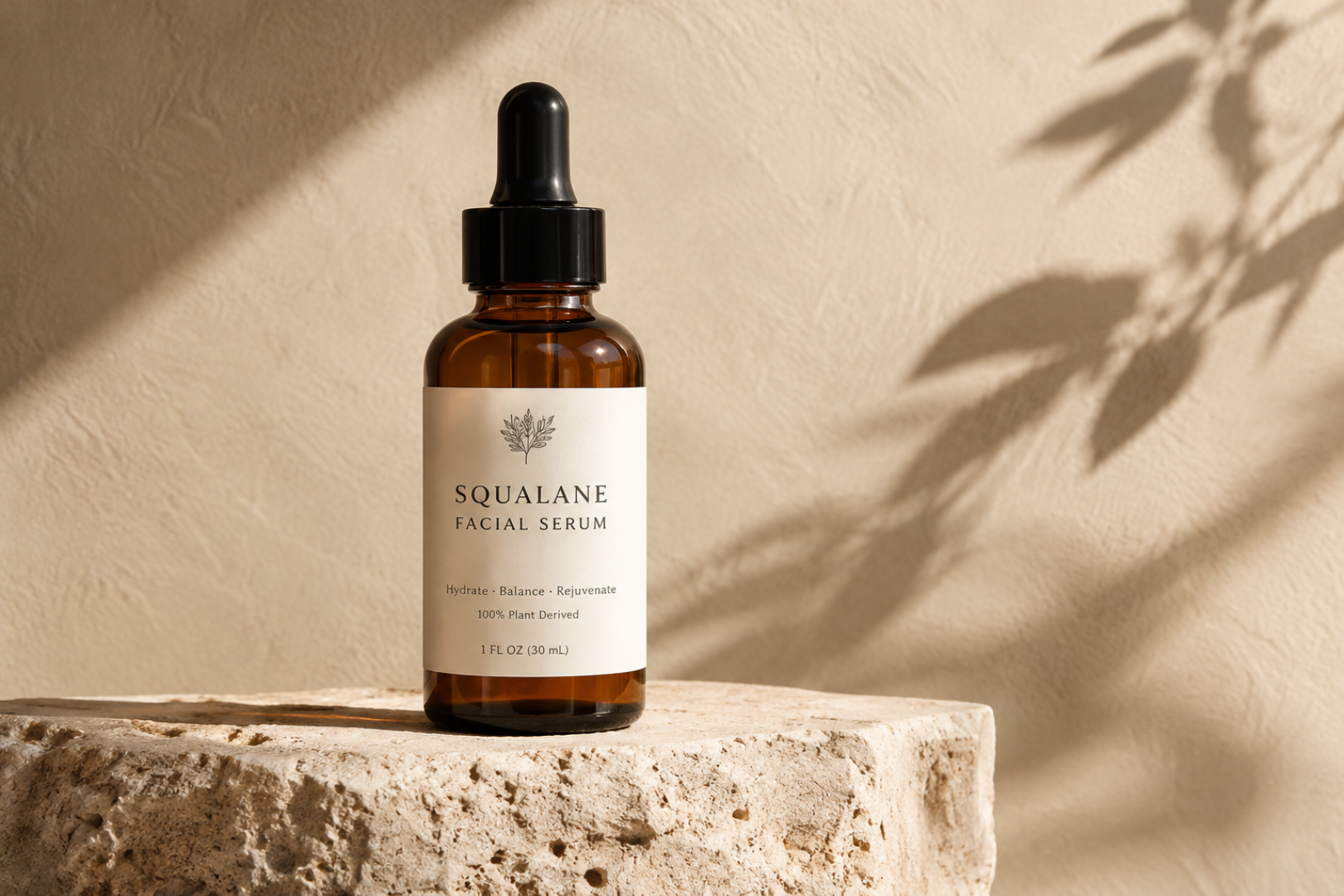
Why Do Background-Replaced Product Photos Often Look Fake?
Before diving into technical solutions, you need to understand why most conventional background remover apps end up making product photos look unprofessional. The main issue does not lie in how neat the product's cutout edges are, but rather in the overlooked laws of optical physics:
- Lighting Mismatch – If you photograph a leather bag using a bedroom lamp coming from the right side, and then replace the background with a garden scene where the sun is shining from the left, the buyer's brain will immediately catch the inconsistency. The light reflections on the bag's surface directly contradict the shadows in the background.
- Missing Contact Shadows & Reflections – A real object placed on a surface always creates a dark shadow right at its point of contact (contact shadow), followed by a softer, elongated shadow (cast shadow). Without these elements, your perfume bottle, shoes, or watch will look as though they are floating in mid-air.
- Harsh Cutout Edges – Real cameras capture depth of field and light interaction around the edges of an object (light wrap). Standard auto-cutout apps often leave behind a thin white outline (halo effect) or overly jagged pixel edges, especially on textured items like knitwear or transparent cosmetic bottles.
Guide on How to Replace Product Photo Backgrounds Naturally with AI
1. Prepare Raw Product Photos with Neutral Lighting
The quality of the final result is heavily determined by the lighting accuracy in your initial photo. You do not need an expensive DSLR camera; a modern smartphone camera is more than enough as long as you follow these basic rules:
- Avoid direct smartphone flash: Flash creates harsh white glare (harsh specular highlights) on plastic cosmetic packaging or metal bag buckles that is difficult for AI to correct.
- Use indirect window light: Place the product near a window in the morning or late afternoon with a sheer curtain so the light diffuses evenly. Neutral lighting makes it much easier for AI to reshape new lighting directions to match your chosen background.
- Ensure the right camera angle: If you want the product to appear standing upright on a marble table (eye-level or 45-degree angle), make sure you shoot it from that exact angle, rather than straight from above (flat-lay).
2. Use the Remove & Replace Background Feature on Stocktree.io
Once your raw photo is ready, upload the image to the Stocktree.io Remove & Replace Background workspace. Unlike ordinary cutout tools, the precision segmentation technology within this platform can recognize intricate materials—ranging from the transparency of glass perfume bottles and the shine of jewelry chains to individual yarn fibers on knitwear.
- Automatically remove the original background: The AI separates the main object from a cluttered background in under 3 seconds without damaging the product's edge details.
- Choose a background theme or type a scene description: You can select from hundreds of commercial studio presets (such as minimalist stone podiums, Scandinavian wooden tables, or luxurious satin backdrops for cosmetics) or type in a custom scene description that aligns with your brand identity.
- Automatic lighting synchronization (Auto Relighting): When a new background is rendered, the AI intelligently adjusts the color temperature and shadow direction on the product so that it blends seamlessly into the new environment.

3. Refine Details & Atmosphere with In Canvas Editor and Magic Edit
Sometimes, a catalog photo needs supporting elements (props) to look more vibrant and tell a story—such as rose petals beside a perfume bottle or fresh water splashes near a facial cleanser. This is where you can take advantage of the In Canvas Editor and Magic Edit tools on Stocktree.io.
- Adjust object scale and proportions: Using the In Canvas Editor, ensure the product's size makes sense relative to its surroundings. A lipstick tube should not appear as large as a stone pillar behind it.
- Selectively add supporting elements: Use Magic Edit to brush over empty areas around the product, then prompt the AI to add natural stones, draped silk fabric, or tropical foliage. Because everything is rendered within a single unified canvas, the lighting on these added props will automatically align with your main product.
Frequently Asked Questions
Q1. Can product photos taken with an ordinary smartphone camera be edited to look like studio shots?
Yes, absolutely. The key is to ensure your initial smartphone photo is not blurry and has bright, even lighting. Once uploaded to Stocktree.io, you can use the Upscale feature to enhance the photo's resolution and sharpness while simultaneously replacing the background with a realistic commercial studio scene.
Q2. How do I ensure the product's true colors do not change when replacing the background with AI?
The segmentation technology on Stocktree.io works by locking the pixels of your main product object so that its shape, logo, label text, and original colors are accurately preserved. The AI only modifies the background area and adds subtle lighting and shadow layers around the edges for natural integration without compromising the product's color accuracy.
Q3. Are AI-generated backgrounds allowed on marketplaces like Shopee, Tokopedia, and TikTok Shop?
They are completely allowed, provided the displayed visuals honestly represent the actual shape, size, and color of the product being sold (without misleading buyers). In fact, main product photos with clean, aesthetic, and professional backgrounds are proven to significantly boost Click-Through Rates (CTR) on marketplace search pages and TikTok Shop ads.
Q4. What are the best photo dimensions or aspect ratios for e-commerce catalogs and social media?
For marketplace catalogs (Shopee/Tokopedia), a 1:1 square ratio (minimum 1080 x 1080 pixels) is the best standard so images do not get cropped on mobile screens. Meanwhile, for Instagram Feed posts, Shopify catalogs, and vertical ads, a 4:5 ratio (1080 x 1350 pixels) is highly recommended as it maximizes screen space on mobile devices. You can use the Expand feature on Stocktree.io to easily adapt your images to these various aspect ratios.